Wednesday, March 21, 2018

#hourofplayeverday

When some hear the words play they picture toys or kids or both everywhere all over, things half left out,
messes and wacky stories, simply put chaos. What I see is collaboration, negotiating skills, force and
motion lessons, quantitative thinking, taking care of one’s needs, asking others for help, story building,
and so much more. So then the question arises how do we bring this emphatic response to being in the
classroom. While I do not claim to be an expert here are some things I have recently attempted to help
bring an hour of play into my classroom time.


1- Play in the morning: Students have 10-15 minutes to play first thing in the morning, after attendance
and announcements. This allows them time to have social interactions that I was trying to stifle originally
in order to get to content. They get to play and according to a recent podcast I heard by Don Wettrick
where he was talking with Dr Brynn Winegard an expert in the field of business and neuroscience, but
speaking about Brain based leadership and innovation. Paraphrased, “The average attention span of this
generation is approximately 3 sec…” and paraphrased “that research shows students brain are most
ready to work after play..” These two reasons alone just help support my reason to starting the day with
play. Additionally, I have noticed that when it is time to learn they more on task, work collaboratively to
solve their problems, and voice level is better maintained. Now not all of this is directly correlated to play
it also has to do with procedures set in place prior, but previous to incorporating play in the am I had
more issues with their work time then I do presently.
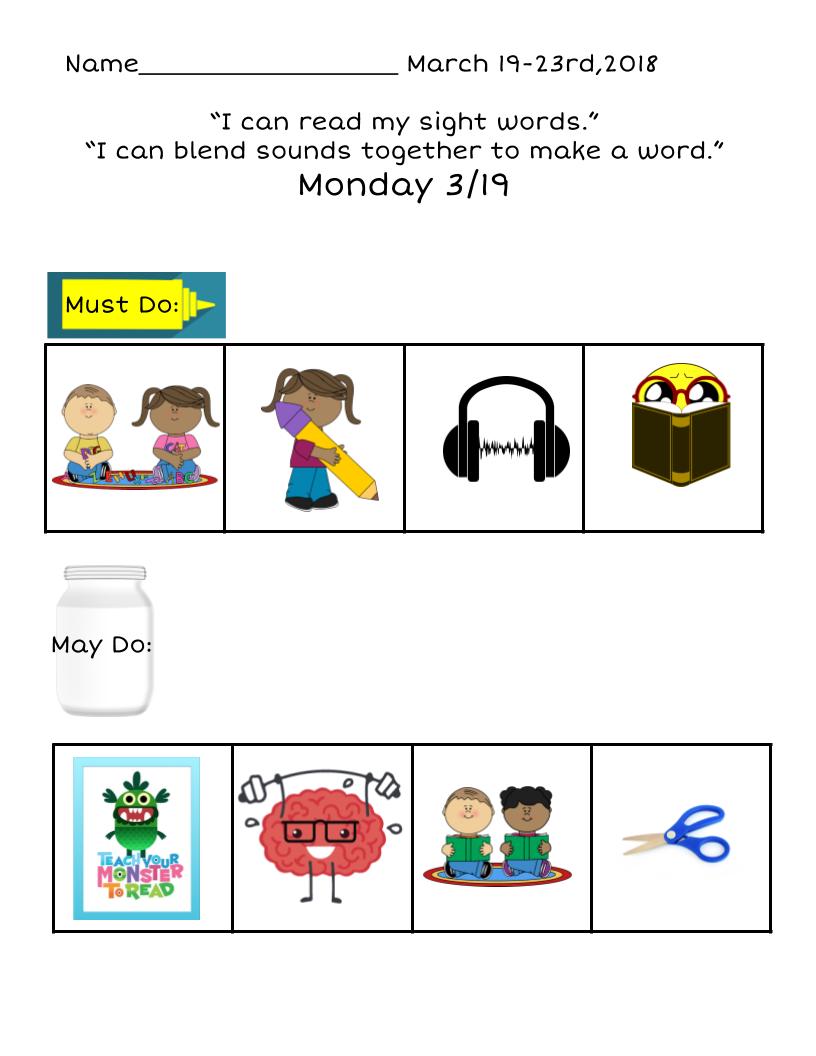
2-Play and choice in their work: Students are given menus of their small group center activities for the
week, we call them menus. These menu’s have 4 must do centers and 4 may do centers. The only rule
is the Must do’s need to all be done before you can move onto the may do’s . Students are then given
1 hour and a half to complete their may do’s in any order they want, as long as they accomplish the task.
Often times May do tasks will be a purposeful game or skill for them to work on to help them master or
work on a skill in the subject area. As I introduced menu’s I kept it easy and work light so students got to
play faster. At this point of the year students are completing several time intensive tasks and still able to
get to their May do’s. Their productivity has increased in the matter of months.

3-Time outside: I really enjoy the sun, and sunny days are perfect for students to learn, so when
introducing a new topic in math (at the end of the day when most K’s just want to go home) I take them
outside with chalk and we learn the concept outside on the sidewalk, or we play games like duck duck
goose to help with counting and subtraction skills. Students can then grasp the concept in a kinesthetic
or tactile approach which is how most littles learn. Our school recently created an outdoor classroom,
that I am super excited to take my class to for our learning adventures.
4-Ketchup Time: This is a time when students that may have not completed all their must do’s can get
that work done and students that are done can have free play this is usually for about 30 minutes at the
end of the day. While I have found quite a few road bumps with this one, I am also trying some skills to
help students learn to ignore distractions and still get to their time. I have recently purchased some sand
timers on Amazon which I tell the students that need to work that once the sand is out they are done for
today. I usually only hand them a 5 minute timer. Then these littles still get to play so they see the
reward for work completion. (Which is not the goal just the happy outcome).

In using play in these ways, I am still able to get content in, attend to student needs, and help them
learn important social and life skills in the process. I will still admit there are some kinks I need to
work out based on individual students needs, but all of my students are benefiting from at least one of
the above ways of play in the classroom. I also do not think I will ever go back to how I used to teach,
my goal is to always innovate and change my teaching to best benefit my students that year.

Sunday, January 28, 2018

#GoogleClassroomdifferentiation

This week I participated in the #innovatingplay/#gafe4littles slow flip chat about connections.
In one of the post I mentioned how I differentiate assignments for my students to help meet their needs
at their level and connect with them at their level. This prompted a request for some examples of how I
do this. Therefore a blog post was born.


Google Classroom has a wonderful feature that allows you to assign activities to students.
When I first started using the program the only way to give a specific student a slide deck was to label
assignments with their name or number and then they had to search for it in the stream. If any of you
know the struggle of the stream in Google Classroom with Kindergarten, it is real.That is why I was so
ecstatic when they gave you the option to select a specific student or students.


Google has started up a wonderful Youtube series called EDU in 90. In this series Google for education
designers/developers tell you about an Google EDU product in 90 sec. In this specific video they are
talking about how to differentiate in Google Classroom:

I always start off differentiating listening activities. I use the Edpuzzle extension to help take out ads
from YouTube stories that are on their level. This can take lots of hours searching because if you are
like me you find one and then hear a song that kinda sounds like a Justin Timberlake song you heard
and then you remember he just released a new album AND WE’RE OFF on the rabbit trail and then
you remember oh yeah back to books. LOL!
The next thing I have differentiated are animal research report forms. Every year at the end of the year
my kiddos pick an animal to research and do a report about in anticipation of our Zoo field trip. I like to
make sure that students have research that they can kinda navigate specifically for their animal. So I
will search for information on their animal at their reading level and then send that research specifically
to that kiddo.


Once students start to pick up some basic CVC and a handful of sight words reading. I will use Fluency
Tutor to give students differentiated reading passages. Students listen to the passage as many times as
they need and then record themselves reading the passage. It sends it directly to my drive and I can
listen and mark it as a reading record. Then meet with students to discuss how they think they did.
I will admit I could be better at differentiating but finding the time is hard. I have great intentions to make
differentiated activities for my students for everyday of the week, but…. LIFE #thestruggleisreal. I have
gotten to a few things, but mostly use differentiating for sending links. Here are some of the activities I
have created for differentiation with students.

Name Building: First name with help, first name no help, first and last name.


Math: 100's chart match, 100's chart fill in missing 10, 100's chart fill in 5's, 100s chart fill in


Saturday, January 20, 2018

#productspotlightTYMTR

#productspotlight
Today I am going to spotlight the educational website Teach Your Monster To Read (TYMTR).
This is a website that helps to build students phonics and phonemic awareness skills with online, board,
and physical movement games for FREE. I discovered this product from frustration with my reading
curriculum, which was really lacking in meaningful phonics instruction. The interaction between the online
gaming and then transition to classroom learning with board games is amazingly impactful and allows
students to feel successful. Here are the reasons my students and I love Teach Your Monster to Read.


Students Reasons they LOVE Teach Your Monster To Read:
1-I get to create a monster: Students get to create an avatar monster they can add to as they
continue to learn.
2-It’s easy to get into: Students only have to click on the link and then type their name, no tears
over complicated passwords. Students can hop right in and play easily.
3- It’s fun: Students LOVE the games, they even will self collaborate and challenge themselves
(collaborate on their own without teacher saying anything) on levels that they are seeing for the
first time. They don’t even play for the person they will tell them how to do it.
4- I am learning: Students who often are struggling in class are suddenly successful. I often here
students sounding out words, and then telling everyone around that they just read the word cat.


Teacher things I LOVE Teach Your Monster To Read:
1-Logging in is SIMPLE: TYMTR allows the teacher to select their login method. Students can have
a username and a password, type their name and a password, or just use a specific class star code
and their name to login. I copy the star coded link into our Google Classroom under the About tab.
Students click on the link and  type in their name to access their educational gaming experience.
2-Grouping: TYMTR allows the teacher to set students into groups where you can differentiate the
content for those students.
3-Table Top Games:  Not only is it a fun way to practice pre-reading/ reading skills it also has a section
for Teachers to print off games similar to what students see online to play in class. These board games
are great parent volunteer centers!
4-Movement Games- Some of my favorite parts are not the online gaming, but the content for teachers
to print off for free and use in their classroom. Movement games like Pirates and Sailors where students
have to quickly match a graphic (lemon) with the letter l. The pirate then swipes it off the island and the
Sailors have to try and get as many matches before time is up. My kiddos LOVE this game!
5- Data: I love the systematic breakdown of how the students are doing on each portion of the games.
I can see the specific letters and the percentage of correct responses to that letter throughout their
learning. For example Bob was working on herding sheep into the correct phonics pen, working on the
letter k, I can go and see that for the letter K he was answering and identifying the correct pen 80% of the
time, but on the next game for the letter A he was only answering correctly 20% of the time. This can
then help me to differentiate and specify instruction.
6-FREE: Our favorite price as educators is $0. This product is amazing because it has so much and is
educational impactful for that favorite price FREE.99.


Please feel free to comment and ask any questions you may have about this fabulous resource.

Thursday, July 27, 2017

#reboot

Summer for teachers is a time to relax, reflect, and reboot. As teachers we put a lot of time, thought, and effort into our students and classrooms. Unfortunately, at least for me this often means I forget to reflect and reboot my personal life, I am always trying to find a better way to balance work and personal life.

The opportunity to have this reflection came while I was in Germany on the #gafe4littles. They held a slow flipchat in which we used Flipgrid to video record our answers to questions and chat with each other about topics over a week span ( which I was thankful for given the time difference). I responded to my school goal, but the question continued to linger in my mind.
Reflecting back on the craziness that was my life over this last school year I noticed the huge impact it had on my relationships with friends, family, and myself. I survived and am stronger because of it. As I begin to lift from the fog of a very busy year I am reminded of the reboot button we often use in tech and when reflecting on our classrooms. In an effort to reboot my life as I reboot my classroom every year I have made some organizational and personal goals.

My life reboot includes: ‘
  • This reboot/upgrade includes home improvements, my goal is to take a couple each day to do something in my house with no technology (except maybe Spotify for music).
  • I am also rebooting dinners, I am really trying to prep and plan out dinners.
  • Yoga at least twice a week. I am hoping this will help me be more mindful and present.
  • Technologically I am rebooting my image with a new G-sites for all my materials. https://sites.google.com/view/technicallyteaching/home
    • Every Christmas my family participates in a tradition of everyone gets 4 gifts something they want, something they need,something to wear, and something to read. I took a similar approach on the site with a Top Tech 5 of the month. Each month you will get a Tech tool to check out, a recommendation for a book to read, suggestion for something to listen to, a must read blog post or video, and someone new to follow on Twitter.
    • I also plan to blog once a month, but with this reboot am going to try a new blogging technique one that is interactive. In this interaction readers will be encouraged to use tools on their computers to help create things to help with their teaching practices. I have planned it out to try and make it a more consistent occurrence.
    • Finally, I will kick off my YouTube channel soon, I will hold once a month how to videos on using apps or G-suite tools throughout the year.

I am hoping that this more organized structure and focus in my life will help me to be a better teacher as well as a better wife, doggy mom, and friend.  

The first blog challenge is how will you reboot your classroom this year? Fill free to use the template below and share it with others on social media, or colleagues in your building.


Saturday, May 6, 2017

#classroompart2

#Classroom2

After the initial setup of Google Classroom, I continue to use Classroom as the go to hub for all things digital in my classroom. Students know that they login and go to classroom for anything on our Chromebooks.

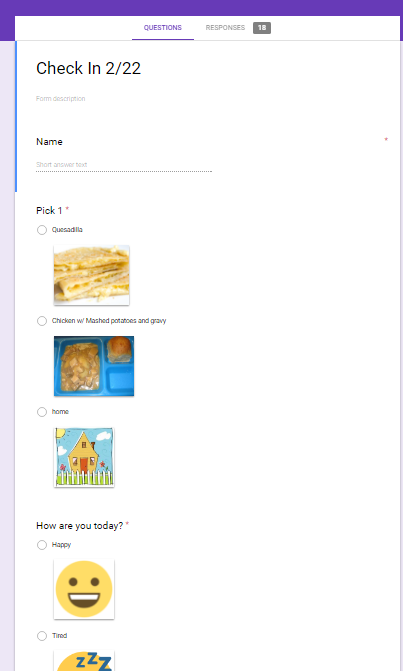
First thing in the morning I get 4-5 Chromebooks out and use these Chromebooks for students to check in. I have created a Google form which I put in Classroom as an announcement. The google form looks like this:
Check In 2 22   Google Forms.png

After I have signed in the Chromebooks, students get into classroom and fill in the form. I have left the submit another response option on to the end of the form so another student can come in behind them and check in. When finished students come to the carpet have a short discussion time as they wait for other students to finish checking in,and the morning announcements. Following the morning announcements, students start with calendar on the Interactive whiteboard, as I take my Chromebook, check the results of the form and take attendance and lunch count.   

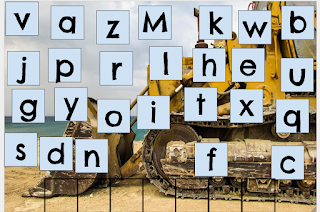
At the end of calendar time, we go into ELA whole group time, which they use their Chromebooks to get into classroom and open their hyperdoc assignments. ( See https://goo.gl/dKu8C7 for information about blended learning and the hyperdoc).Each student is given their own copy through the assignment feature in Classroom.  Each slide represents a day of the week slide one Monday, slide three Wednesday, etc. I recently changed it so that students fill the background color of the square once they have completed the activity.

For those go to websites that students often go to for early finishing, or free tech time, I place those within classroom. These most used websites are located under the About tab. I then have a quick tech talk with my students about where to find these resources, then we practice getting to the sites and interacting on these sights. There are certain times students can and can not get on these sites, as I want to make sure to instill a good balance in their lives.  

In the last couple of months Google Classroom has opened a feature that allows the teacher to differentiate assignments within the Classroom Stream. This has been a game changer for me, when it comes to being able to give students at level text for them to listen to and read. I use this feature in conjunction with Texthelp’s Fluency Tutor. Students are given a passage at their Lexile level, can listen to it as many times as they need and then record themselves reading the passage, which they submit to me and it lands in my drive. I can then do a running record with the WPM and % accuracy is calculated for me as I mark the passage. I can then grade students on a premade fluency rubric and students can see their scores. I can then use these recordings at conferences with parents if I want them to hear something I want them to really work on at home.

I often get asked how I keep students accountable for actually getting work done and not just playing games the whole time. My answer is instilling digital citizenship talks throughout the year. I also use the all to handy teacher institution, you know that feeling you get when you're working with other students and you can tell students are off task, either the look around room sneaky, or they are obviously playing games when they should be typing sight words.

I have shown students how to access their files in drive and tell them that this is how I check to see how they are doing on their work to see if you need help. My main concern in Kindergarten is not to punish students for their misbehavior but to get them use to the tools and help guide them with making digital citizenship choices. Like all other things Kindergarten is setting the foundation for school. I don’t scold students who aren’t doing work when they are suppose to but say, : I see you didn’t get very far in your assignment, can a Google guide or I help you?” This often opens up the discussion so students see, it’s OK to not know and ask for help.  

These are just a couple ways in which you can implement and use classroom to help blend your instructional practices with little's. There are many more, be sure to check out christinepinto.com, #Gafe4littles chat on Tuesdays (1st and 3rd Tuesday of the month), listen to awesome ideas on Google Teacher Tribe podcast or the #gttribe. Look to your PLN for ideas as well.

Sunday, April 23, 2017

#GettingstartedwithGoogleClassroom

#GettingstartedwithGoogleClassroom


File:Google Classroom Logo.png - Wikimedia Commons


Google Classroom was an exclusive feature for EDU license that has now open up within the Gsuite environment. It allows you to manage and push out content to your students, even grade and differentiate assignments all in one stop. No more I lost that assignment talk or my dog ate the homework excuses. But most of all it is the perfect place to get our younger students exposure to all the apps in the Google Suite. A playground where they can crawl, run or leap and land in a pool of soft foam. I am going to start off with the beginning how do we get into Google Classroom (Classroom) and begin using it.


Before I ever started with Classroom, I sat looking at the upper grades going oh that is such a nice feature for them to organize all their assignments they hand out, and then can grade. As a Kinder teacher I just thought it was a tool I would use some day. I would learn about it during the summer or a break, and then spend the rest of that break finding ways to modify it to fit my Kinders needs. This year I decided to really blend technology into my teaching practice, so I talked with several people and did some research and then decided to quit trying to plan and scheme and just jump! I knew I wanted my students to all login and work on a collaborative doc the first time they logged in. The question then became ok how are they going to get the doc. That is when Classroom came gleaming like a beam of light from heaven through the thick grey Seattle rain clouds.


In an effort to blend technology into my teaching practice I knew I needed to start early on in the year to really give them the most exposure to all there is for them to explore.Before we logged in I as a teacher setup our classroom. I went to Google classroom clicked the + sign and then clicked create class. I named the class checked under the students tab and got the class code. I then created a doc inserted a table that was 4x5, titled it My Name Is. Then I went into classroom and clicked on + sign in the bottom right of the screen and added an assignment. Named the assignment 1 clicked on the drive symbol and added the doc I created. The wonderful thing about this is once the doc was uploaded on the right side of the assignment box I was given options as to if I want students to have edit rights, a copy for each student, or view only permissions. I chose Edit rights, since I wanted all the students to be able to work in the same doc. I suggest that if you use each student can edit that you make a copy of the assignment in your own drive so if something happens you have a backup document. My favorite feature I use the most is the make a copy for each student and then you don’t have to worry about the master getting messed up. For the purpose of this assignment editing rights worked best.

On the 5th day of school I had my students login ( for more information about my login process see my earlier article https://goo.gl/ce1KL7) They then clicked on the classroom extension that was added by the district ( I highly recommend having this extension on your chromes) then they clicked join class and entered the class code that was written on the board. I will admit most of them had assistance from the helpers in my classroom to type the code. Once students were in classroom I had them come to the carpet so we could discuss what they were going to do next.


At the carpet I showed them how to open the doc and how they were going to use the table to type their name. “Each one of you is going to have a parking spot to type their name, see these boxes they are like parking spaces for your writing. When you go to the store or a restaurant can two cars fit into one parking spot?” Insert kiddos response of no or one time my mom/dad tried to fit in a parking spot with another car and we hit the car. Lol we had a quick tell a friend your parking lot story. I told them that they can see the other person’s car based on the different colored lines, they need to be careful of the space they are using to type. Like parking a car check to make sure no one else is in the spot/box you are using.Students were sent back to go ahead and do the assignment. I had the doc projected on the board so I could monitor traffic ( over writings, deletion etc). As I monitor the board I also walked around and make sure students were able to access and find a parking spot in the doc.  The students got to work on the collaborative slide typing their names. There were a couple accidents, “hey you’re typing in my space” or a “ Where did my name go.” But for the most part very few accidents occurred.

After the initial parking lot experience. I make sure to use classroom for all technology activities. Students rarely use their bookmarks bar, but go to classroom to find what they need. Check out #Classroom2 to learn  more about how I incorporate Classroom in my class.

Wednesday, March 29, 2017

#Blendedlearning #gafe4littes

As I am preparing to co-moderator with the incredible, fabulous, and wonderfully top-knotted Christine Pinto on the #gafe4littles chat April 4 at 5pm PST, I asked myself what would be an appropriate yet inspiring chat topic. I thought of questions I am often asked about me classroom “Is all your kiddos do is play on devices all day, when do they read real books, are they going to read real books, what about math how will they learn the basic concepts?” This lead me to blended learning. Blended learning is an approach in education promoting the blend of technology and non-tech/ traditional classroom teaching. Check out this video for a brief overview of blended learning. https://vimeo.com/89546618

One thing I always make sure to emphasize in my classroom, is that technology is just a natural part of our classroom environment. Students are aware of what it means to be a digital citizen and how to keep themselves organized with progress charts in their journals. Students love the use of technology, but almost all of our reading is done in actual paper books, students practice penmanship and writing in journals and handwriting practice books, as well as learn phonics electronically and in small group activities.

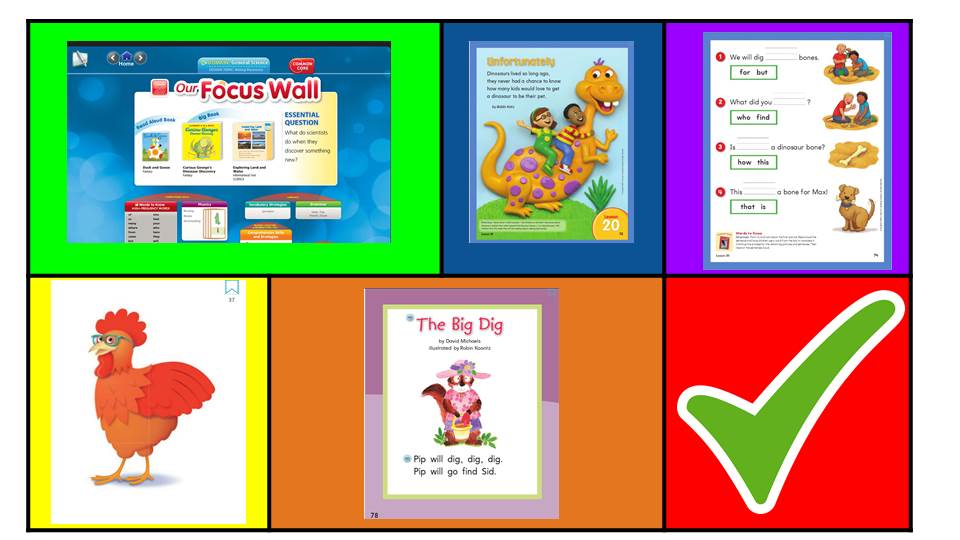
In my classroom blended learning can be seen, most notably in my ELA block. I have decided to take part of my whole group instruction online for my students. If you walk into my classroom during our morning ELA block you will see some kiddos working on hyperdocs, students in a small group with me or a parent volunteer, reading at their level books around the room, or trying to find sight words hidden in a picture.

ELA U4 L20 wk 2 (1).jpg
( All card pictures are property of Houghton Mifflin Harcourt Journey’s curriculum. I do not own the rights to these photos, this photo is to show an example of how I integrate my curriculum within a blended learning environment.)

Within the hyperdoc pictures have a short 30 sec - 1min video in which I explain what to do on each section.This allows students to go back over and listen to the instructions whenever they need to. I set up an environment where there are 3 Google Guides in my classroom each week, these are students that can help trouble shoot any problems that arrive. Students know to ask other students in the classroom for help before seeking my input. This goes with my blended learning model as Kinders are having to troubleshoot, problem solve, and collaborate to find a way to get their work done. The ownership, pride and just natural enthusiasm for these activities leak into all the other modes. Kinders learn to work through and communicate when they are stuck in math, or even reading a word.

I think the most important thing to remember when trying to incorporate blended learning into a classroom is to start small. Blend a lesson, unit, or something you are comfortable starting on or a lesson that can use a reboost. Then be prepared to FAIL especially with littles. I readjusted my hyperdocs 3 times before I landed on the format we have now. I took a lot of littles advice until we arrived at this final product. I will admit that initially I put in more time. I have been working with this method for about 2 months now and I can easily copy the basic format over and am able to complete this during my Sunday planning times for the week.

Remember, blended learning can open up so much time for activities. LOL, Step Brothers modified quote. In all seriousness, blended learning enables me to get testing done, and work one on one with my Kinders who are struggling with key concepts. Start small and try just blending a lesson for your kiddos or a themed study unit. You don’t have to go all tech actually that is important to note, blended learning is just that blending technology into the natural learning that takes place in your room. If you want more ideas, hints, tips, and tricks join the fabulous Christine Pinto and myself for a chat about blended learning at #gafe4littles April 4th 5pm PST.